Critical path, baseline, and week view in your schedule

TL;DR: Get a clearer view of what drives your schedule: see the critical path, compare your schedule against a saved baseline, and view your Gantt chart in week view. We’ve also made some smaller fixes across timesheets, bills, change orders, quotes, projects and daily logs.
Scheduling
Find the critical path
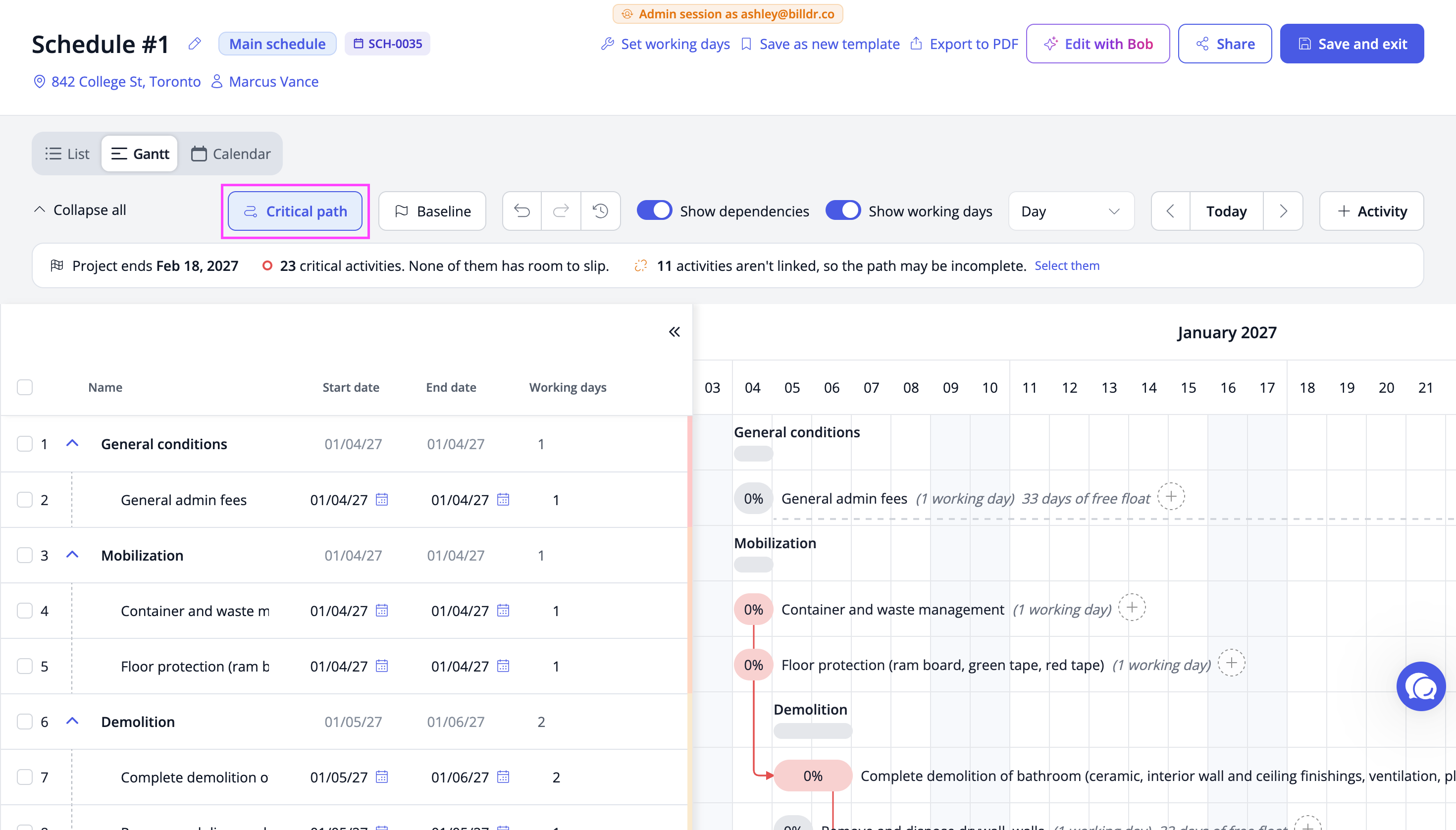
Click on Critical path to highlight the chain of activities that sets your project end date. A banner shows the end date and how many activities are critical: any delay on these pushes the project end.
An activity that isn’t critical is connected by grey arrows, and shows how much room it has, for example "33 days of free float", right next to its bar in the Gantt chart.
A critical activity is connected by red arrows, and clicking on it tells you plainly: “On the critical path: No room to slip. Any delay here pushes the project end.”
Edit any activity to see its start date, finish date, and how many days it can slip.
Compare against a baseline
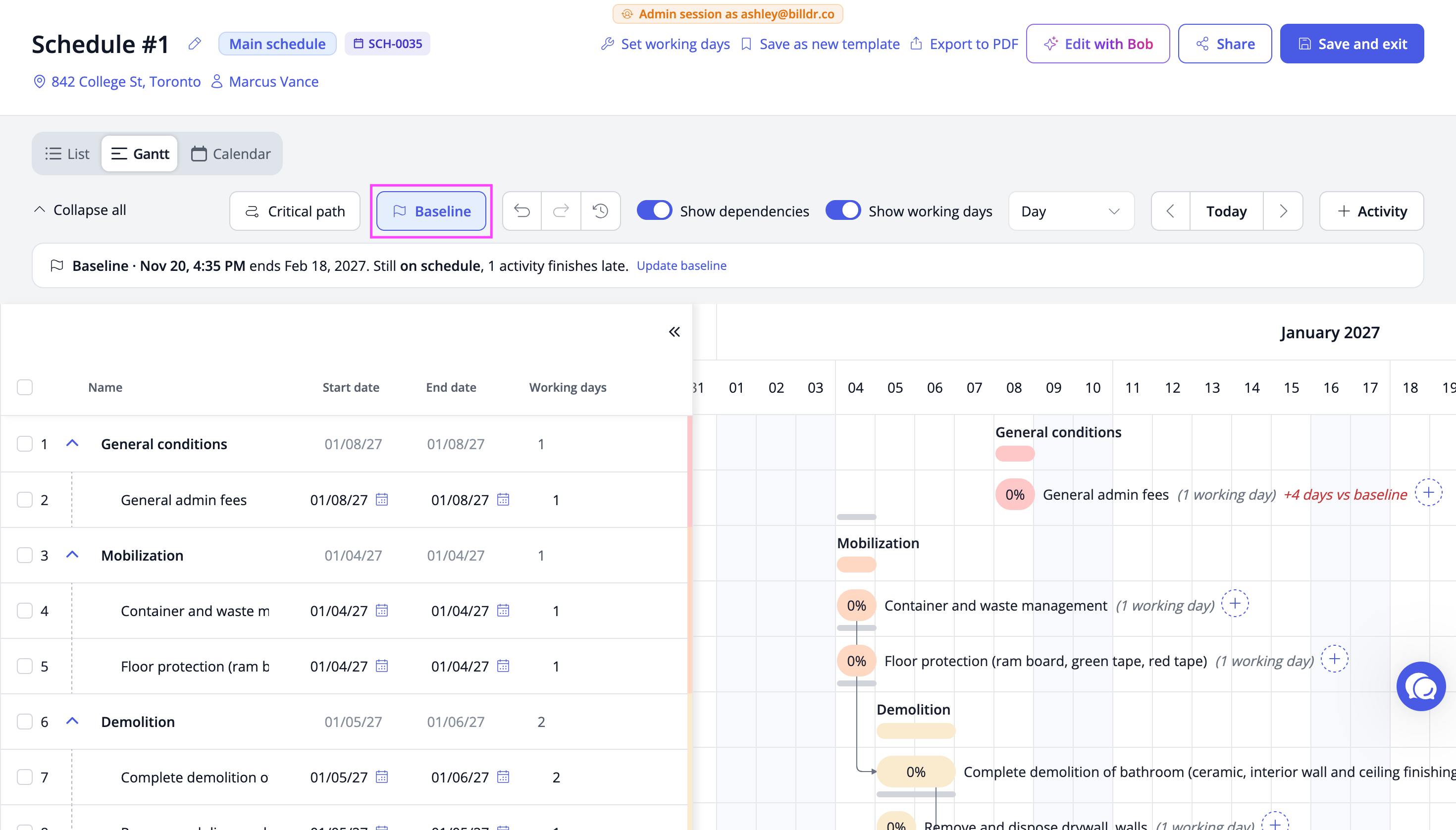
Save your plan as a baseline in one click, then see what slipped and by how much as the work moves.
The first time the Baseline button in your schedule is clicked, your schedule is saved as the baseline.
The baseline appears as a thin grey bar under every activity, so you can see the original dates at a glance.
Late activities are labelled with how far they moved, for example “+4 days vs baseline”, counted in working days.
A summary banner shows when the baseline was saved, its original end date, how many working days later the project now ends, and how many activities finish late.
Click Update baseline to save your reference point. Baselines appear in version history, where you can rename them.
Zoom out to weeks
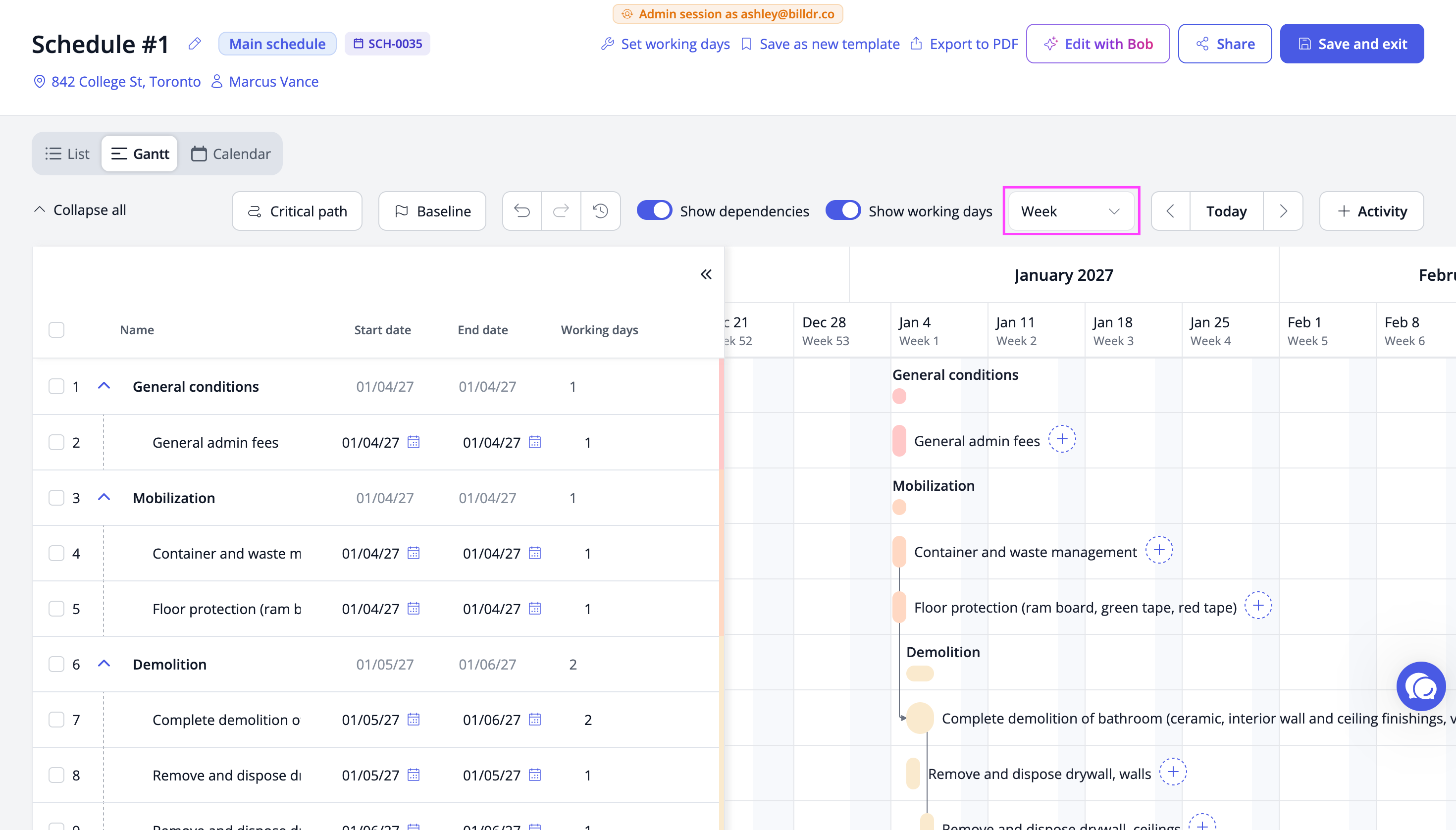
Switch the Gantt from Day to Week to see several months of work on one screen. Dependencies, the critical path, and the baseline all still show in Week view.
Gantt view opens where you're working
In Day view, the Gantt view now opens near today, or at the schedule start if the project hasn't begun, so you no longer have to scroll to find your current work. This is live for everyone.
Other improvements
Edit the project completion date. You can now change a project's completion date in My projects, so your timelines stay up to date.
Quote categories sorted A to Z. Quote categories are now sorted alphabetically, so they're easier and faster to find.
Delete rejected shifts. Remove a rejected shift directly from the timesheet. Shifts linked to an invoice or expense stay in place.
Cleaner forwarded bills. When you forward a supplier invoice as an attachment, Billdr now skips the logos and icons in the email signature, so only the real bill is scanned in.
Edit change orders with Bob. Ask Bob to update an existing change order, for example to rename it. Your usual change order permissions apply.
Multi-select questions in daily logs. Add multi-select questions to your daily log templates, so crews can pick every answer that applies (for example, all the trades on site). Each question needs at least two options.
Preview your branding. Set your logo, colours and email signature in one place, then preview an invoice or send yourself a test email before saving.