New Feature: Bid Requests

You can now manage your bid requests within our platform, track your contracts with sub-trades, and manage your expenses—all in one place. It’s truly a time-saver compared to manual processes.
Key Advantages ⚡️
Speed
What takes 30+ minutes manually now takes just 2 minutes.Simplicity for Subs
No account required = faster responses.Automatic Tracking
Real-time status updates replace Excel.One-Click POs
Accept bid → Create PO → Done.Professional Presentation
Makes you look more organized and sophisticated.Better Sub Relationships
Easier for them = faster responses for you.Complete Expense Tracking
The same attention to detail on both sides of your business.
Bid Request – Tutorial Video
How Bid Requests Work in Billdr PRO?
Step 1: Create the Bid Request
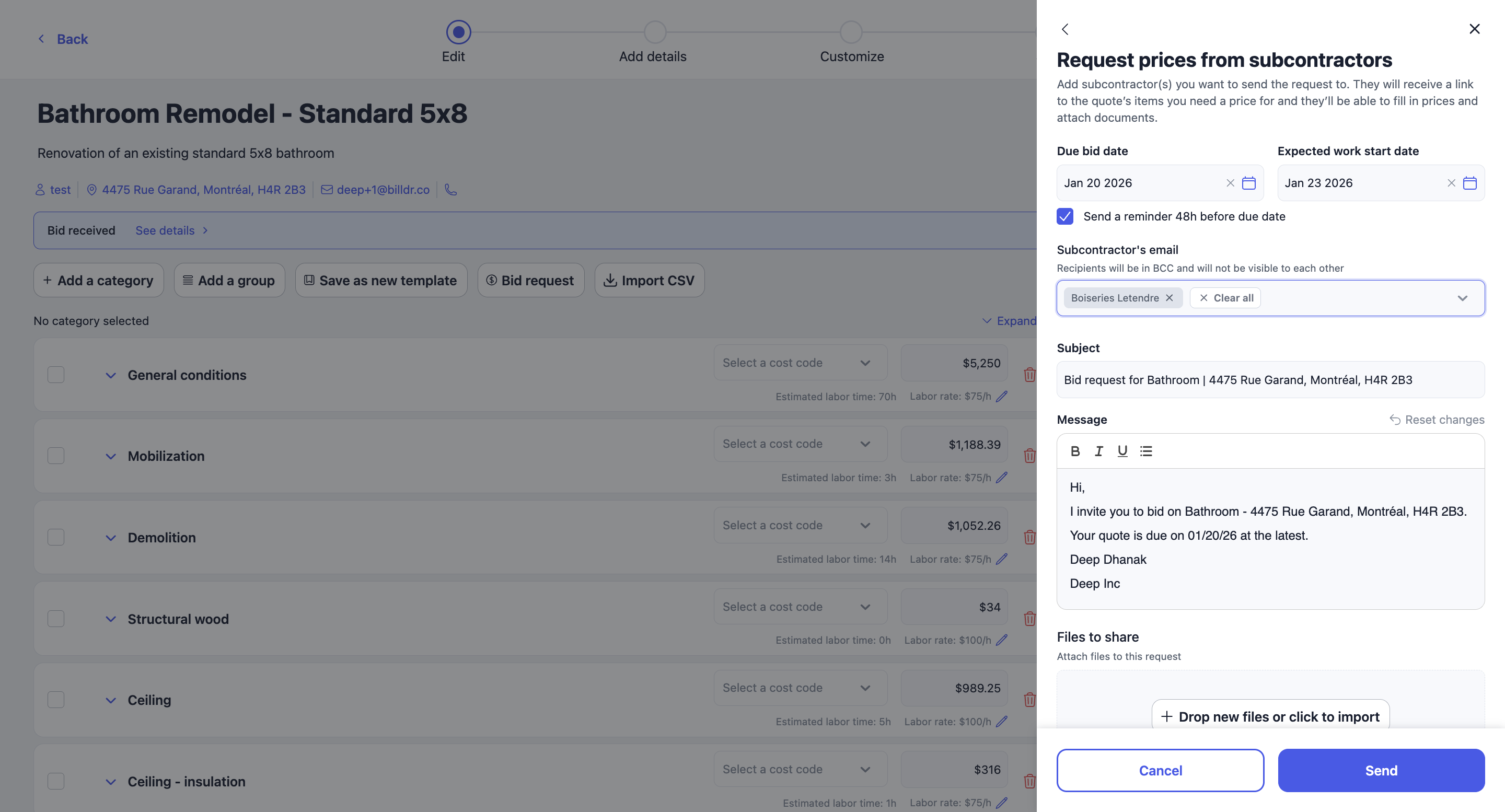
First, create a quote and add categories with a clear description of the scope of work
Then, select the categories you want to sub-trade (e.g., plumbing)
Choose a due date and select the subcontractor(s) you want to invite
Set automatic reminders (e.g 48 hours before the due date)
Enter the expected work start date (for sub-trade availability)
Attach documents
Click Send!
Step 2: Subcontractor Experience (Their View)
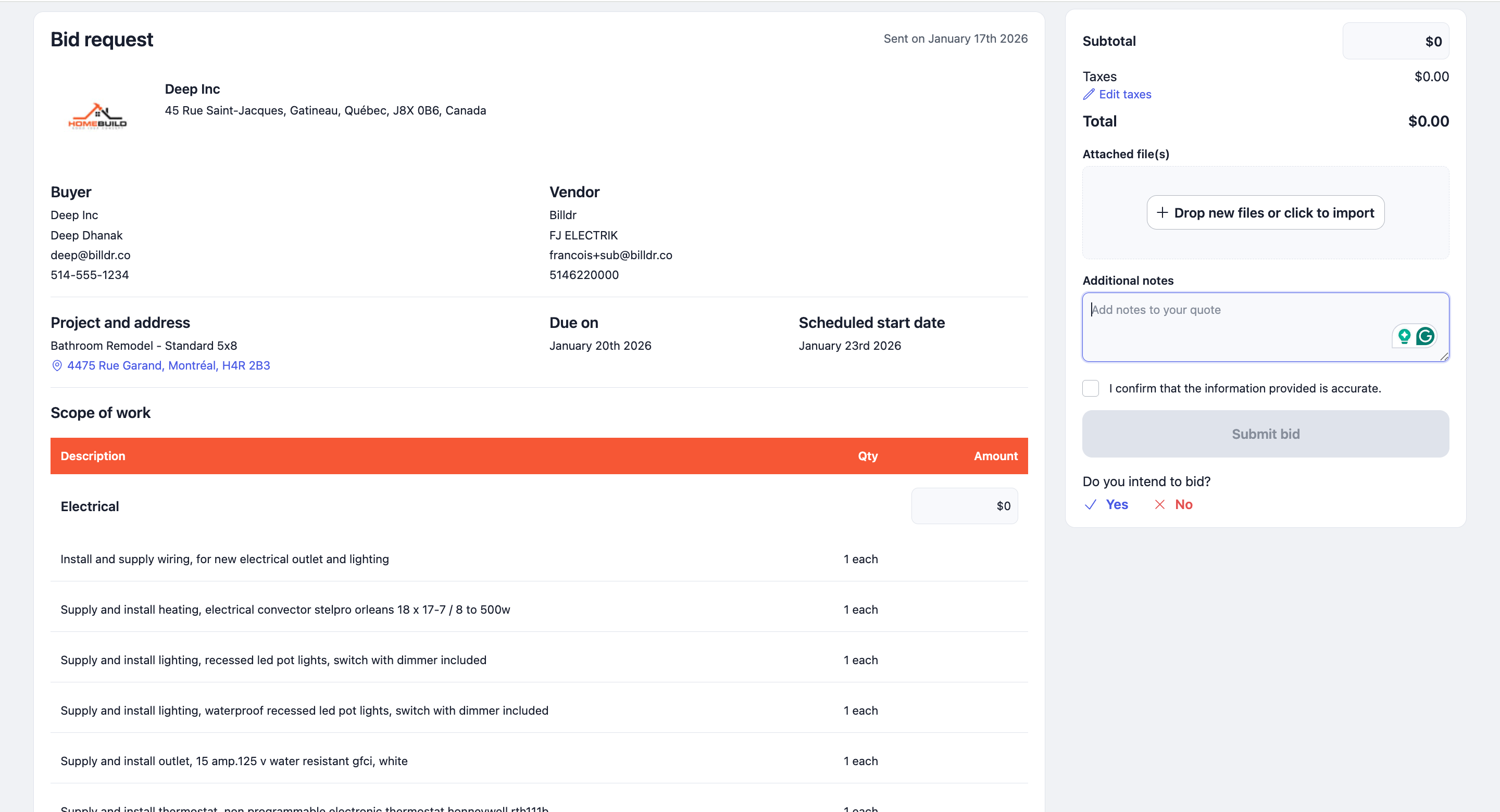
Subcontractors don’t need to create an account to view the scope of work
They receive an email with a “View Bid Details” button
Once opened, they can review the scope of work, enter a price and dates, and submit their bid.
Step 3: Automatic Tracking & updates
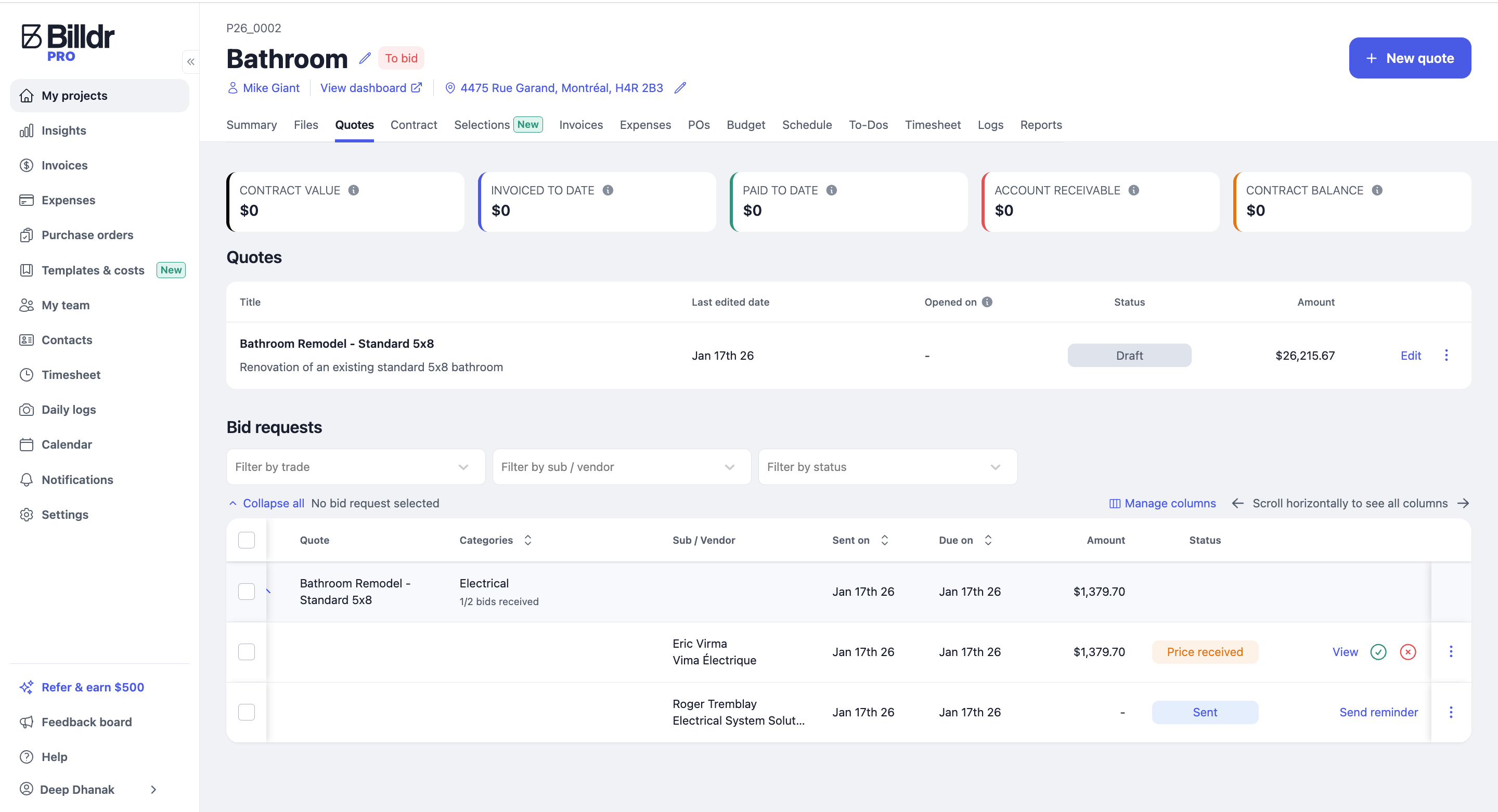
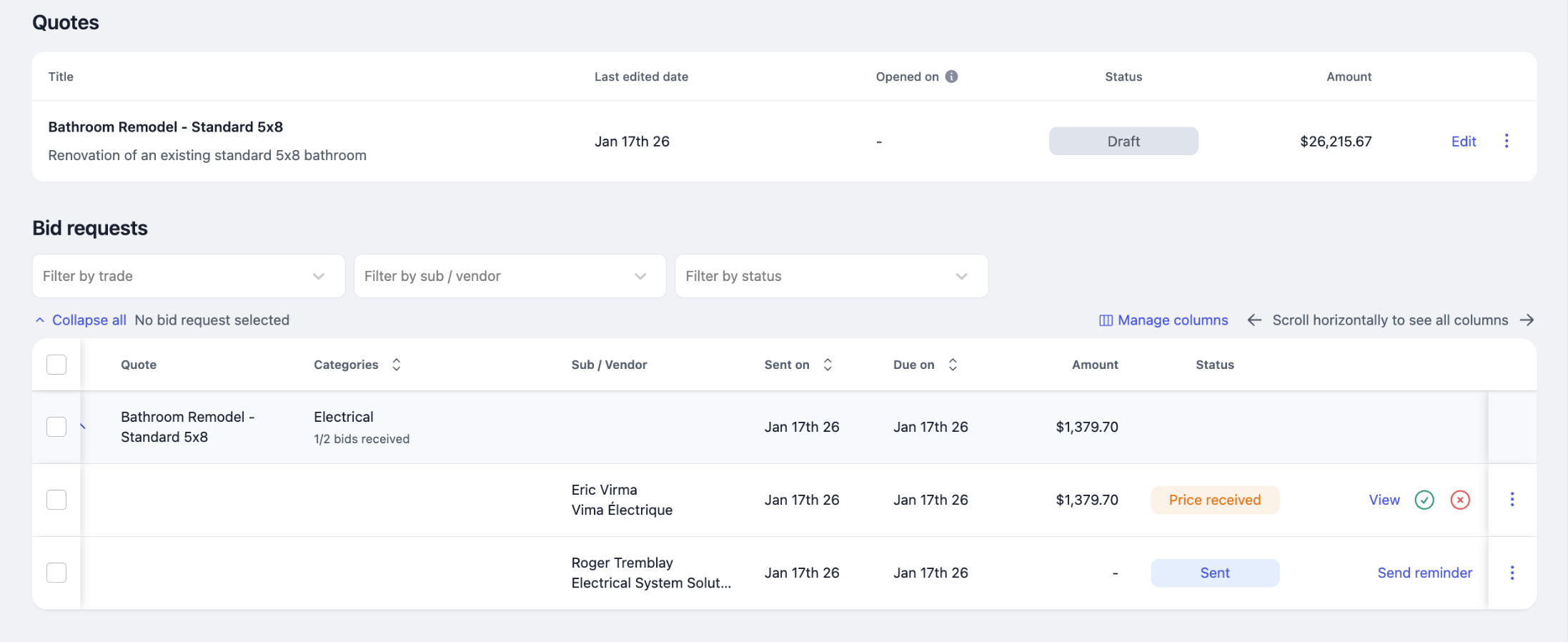
All bid requests are automatically tracked in one place under the Quotes tab within a project
See at a glance:
Real-time status per trades/categories (e.g., pending, submitted, declined)
Number of bid requests sent
Due dates and start dates
👉 Once you select a subcontractor, you will need to manually copy their price and insert it within your quote under the matching category.
👉 If your subcontractor has already submitted their price and forgot to include some items, they will need to resubmit a new price, and you will need to resend them a bid request.
Step 4: One-Click Purchase Order Creation
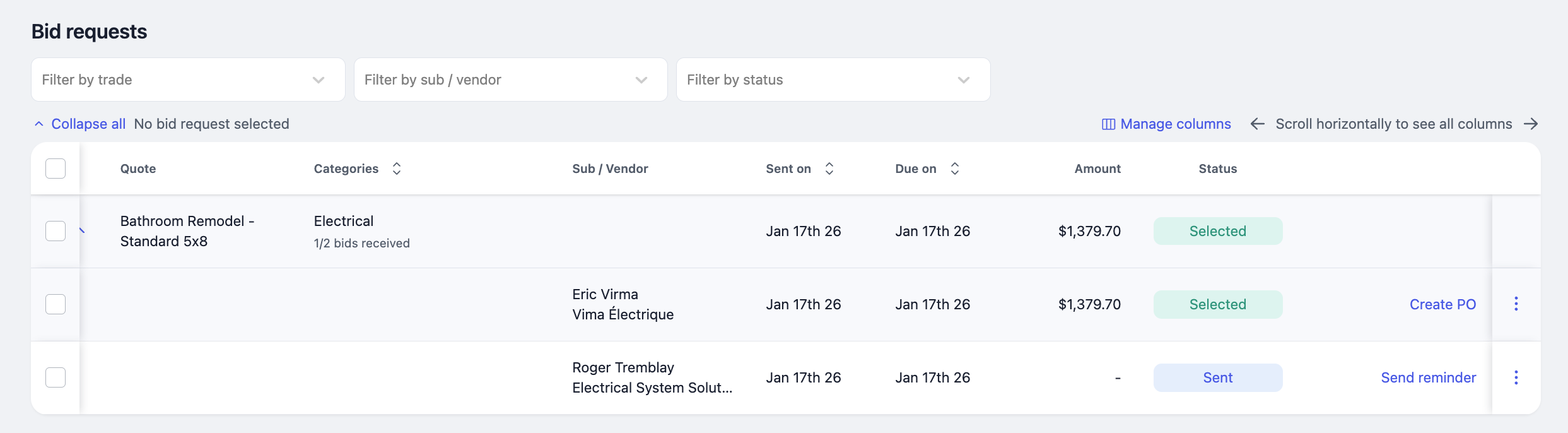
Once you selected your subcontractor(s), you can efficiently create a purchase order (PO).
The PO is automatically generated with:
All bid information
Attached documents
Contract amount
From there, you can easily track:
Total contract
Amount billed
Amount paid
Remaining balance
Amount owed once vendor bills are uploaded to the platform
Stay tuned for more updates!
Billdr team