Release notes

Follow new updates and improvements to Billdr.

April 10th, 2026

Hi there,

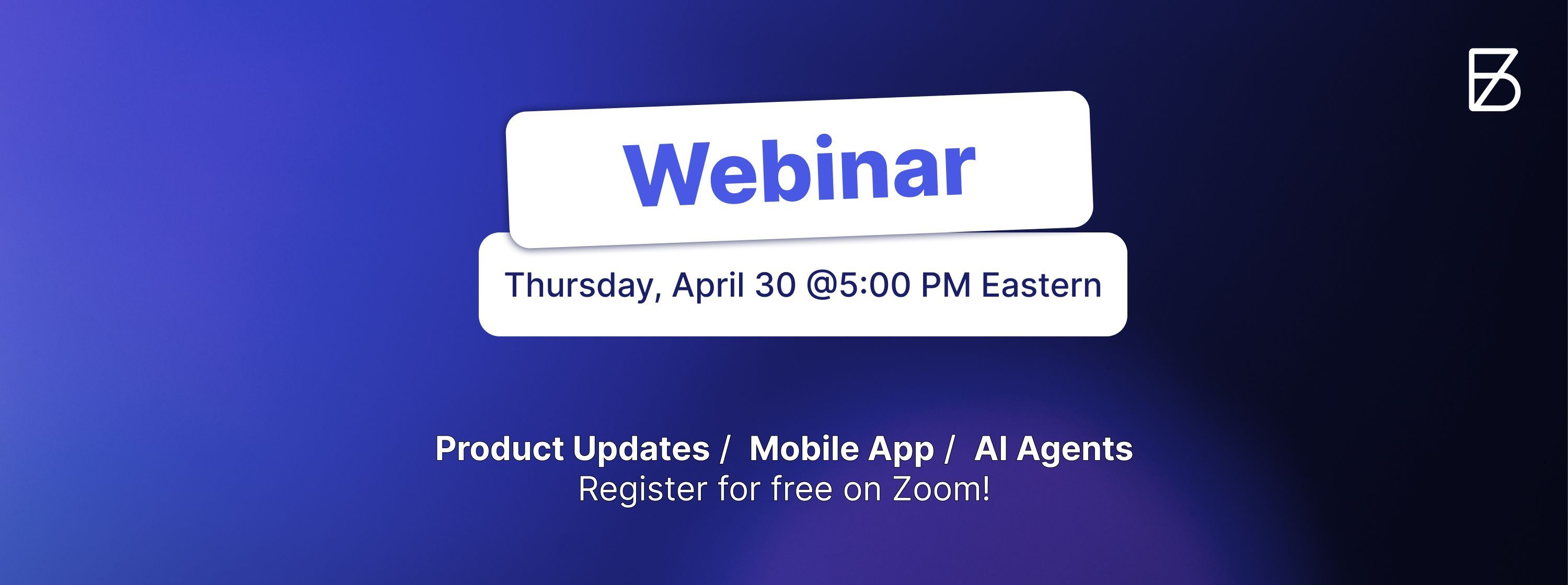
We’re the Customer Success team — Quinn, Ashley, and Francois — and we’re excited to host a webinar to help you master our new features.

Save the date:

  • Date: Thursday, April 30

  • Time: 5 PM Eastern Time

  • Location: Live on Zoom (English)

Can’t make it live? No worries, we’ll post the full Zoom recording the next day so you can watch it on your own time.


During this webinar, we’ll walk you through:

👨‍💻 Recent Updates

  • A recap of the major improvements released over the past six months

  • A recap of the major product improvements we’ve release over the past six months

📱 Billdr Mobile

  • A walkthrough of our new Employee and Admin mobile app

🤖 New AI Agents

  • Bob Analytics (Beta): your contractor copilot to help analyze your business

  • Bruno Quote Studio: a supercharged estimator to streamline your quoting process


Questions?

🙋‍♂️ We want to make this session as helpful as possible. Leave a comment with any questions you have, and we’ll address them live during the webinar.

We’d love to have you join us—register for free on Zoom and be the first to know what’s next for Billdr.

See you there,
The Billdr Customer Success Team
(Quinn, Ashley, and Francois)


Si vous êtes assez nombreux pour les webinaires en français, nous pourrions également en proposer dans cette langue. Faites-le savoir à François ou vous pouvez toujours prendre un rendez-vous personnel via ce lien.

April 8th, 2026

TL;DR: Customize which contact details appear in the header of your documents, and use aliases/company names for more flexible client management.

Custom Contact Display in Documents

Previously, the system automatically used an admin contact in the document header, which didn’t always match what some companies wanted. This update gives you full control over which contact details appear.

You can now choose which contact information (name, email, and phone number) is displayed on your documents, instead of using the admin contact details.

👉 To update this, go to Settings > Branding and edit the Full Name, Email, and Phone Number fields.


Client Alias & Company Name

We’ve added support for aliases and company names in the client contact database.

This allows you to reuse the same email address with different names or entities—useful when working with clients who operate under multiple names or roles.

To create an alias:

  • Go to the Contacts page, open an existing contact, and add one or more aliases in the Alias field

  • Or go to a Project, edit the project, and add an alias there as well

Important:
The alias is only displayed in PDF documents. In the platform (HTML pages), you will still see the original contact name. Be sure to generate a document to view the final result.

The company name will sync with QuickBooks Online, while aliases will not sync.

Stay tuned for more product updates 🙂 And remember, your feedback is always welcome—we’re working hard every day to make the product even better!

April 8th, 2026

TL;DR: New features include vendor credits & refunds, an improved bill-to-pay workflow, and enhanced budget table visibility with new expense and profit columns. Bills are now unified throughout their lifecycle, and you can generate invoices directly from them.

Vendor Credits & Refunds

We’re introducing a new feature that allows you to record vendor credits (to reduce the amount owed to a vendor) and refunds (when a vendor returns money to you, for example after returning unused materials).

To create a vendor credit or refund:

  • Go to the Expenses page, click New, and select Vendor Credit

  • Or go to a Project, open the Expenses tab, click New, and select Vendor Credit

QuickBooks Sync
Once created, vendor credits will sync to QuickBooks Online.

Important notes:

  • Vendor credits reduce accounts payable

  • Refunds record money returned by the vendor

  • To keep your accounts payable accurate in QuickBooks, apply this credit to an open bill when one is available. Make sure a cost code is selected in the vendor credit before applying it to a bill to keep your budget accurate.

We have also updated our budget table to include vendor credits.

Bill to pay improvements

Previously, bills and expenses were separate in BPRO but were perceived as the same. When a bill was paid, the system created a separate expense record, which led to confusion (e.g., lost attachments, duplicated logic, and unclear budget impact).

We have now simplified the model and user experience so that a bill remains a single object throughout its lifecycle (To Pay → Paid), with consistent attachments, cost codes, and budget impact.

You can now find Bills to Pay more easily on the Expenses page, in the Expenses tab, or in the PO tab of a project.

☝️ To Remember: Expense vs. Bill to Pay

Expense
An expense is paid immediately—the money leaves your account right away (e.g., credit card or cash).

Bill to Pay
A bill to pay is an amount you owe but haven’t paid yet—it represents a future payment (e.g., a vendor invoice with payment terms).

Budget Table Update

Expenses side

With this update, the following columns have been added to the expenses side of the budget table:

  • Bills Received

  • Bills Paid

  • Accounts Payable (bills received minus bills paid)

  • Vendor Credits

Previously, bills were included in the PO column. They now have their own dedicated columns to provide better clarity.

Profit side

  • Invoiced to Date (%)

  • Paid to Date (%)

  • Accounts Receivable (AR) (Invoiced to date minus paid to date)

☝️ To Remember: How to Master the Budget Table

The budget table is automatically pre-populated based on the types of resources used.

To use it effectively, you’ll need to understand and manage cost codes (divisions and subdivisions) to properly allocate your costs (e.g., demolition).

Uncategorized items appear when a resource does not have an associated cost code.

Generate an Invoice from a Bill to Pay

When creating a new client invoice, you can now select a Bill to Pay as an item. (click add from, select bills)

This is especially useful for contractors working on a cost-plus basis who want to get paid before paying their suppliers or subcontractors, helping them better manage cash flow.


If you read until the end, leave a comment saying “Hi BOB!” by Friday for a chance to receive free tokens from the Customer Success team. We’ve quietly 🤫 released “Ask Bob,” a new AI agent designed to help you analyze your business.

Stay tuned for more product updates 🙂 And remember, your feedback is always welcome—we’re working hard every day to make the product even better!

March 27th, 2026

TL;DR: We’re launching a mobile app for employees (April 30) and admins (June 30), available on iOS and Android. Built for the field, with more improvements coming based on your feedback.

Employee Mobile Portal

We’e been listening closely to your feedback on the employee web app, and we’re looking forward to bringing that experience to you as a native mobile app, — targeted for April 30, 2026.

We’ll be sharing more details (and how to download the app) as we get closer to launch.

The web app remains fully available in the meantime, but we think you’ll prefer mobile once it’s here.

Admin Mobile Portal (Lite)

We’re also working on a lite version of the admin mobile portal, focused on supporting admins in the field. With the app, we’ll be able to:

  • Create and manage projects

  • Access important documents

  • Handles essential admin tasks on the go

This will be an iterative release: we’ll be starting with a lightweight version targeted for late June this year, and we’ll continue improving it based on your feedback.

We’re really excited about this — so we had to shoot a quick video 👇

What would you like to see in the mobile admin experience? Let us know in the comments, and stay tuned for more product updates 🙂 We’re working hard every day to make the product even better!

March 24th, 2026

Project Notifications & Auto Assignments

We’ve added more control so project owners can be automatically assigned to projects. Being assigned to a project will send you notifications related to it, mainly daily logs.

From the My Team page, once logged in, you can enable auto-assign to always receive notifications. Note that you cannot enable this setting for someone else—only the logged-in user can turn it on.

As a reminder, you can always add yourself as a “team member” on a project to receive notifications for specific projects.


Quote – Categories

You can now create new categories directly within a quote. Previously, you had to leave the page and go to My Templates & Costs > Categories, which interrupted the workflow. Now, when you start searching for a category, if none exists, you can create it on the spot for future use 🙂. The cost code is optional. The rate value is used as prefilled information but can be changed at any time.

Quotes – Unit Price Display

We’ve added the option to display the unit price within the quote.


Invoices – Track What’s Already Billed

When creating an invoice for your client, if you want to import items from change orders or the payment schedule using the “Add From” function, the side panel now shows exactly which items have already been billed.

Additional improvements related to this are coming soon, including progressive invoicing.


Professional – Cost Code Association

You can now assign a default cost code to a professional contact. This helps save time by automatically applying the same cost code (e.g., “03 - Mobilization”) when adding expenses related to that contact or supplier—one less click.


Other small fixes

  • Fixed HEIC image preview in daily logs

  • Fixed PO Bills export

  • Fixed Accounts Receivable (AR) on the invoice global page to exclude in-process payments and only count received amounts

  • Added contact details on hover for quicker access to person information

Stay tuned for more product updates 🙂 And remember, your feedback is always welcome—we’re working hard every day to make the product even better!

March 11th, 2026

Within each project, you can now add detailed internal notes about anything.

To add a note, open a project, go to the Communications tab, select the Notes tab, and click + Note.

Enjoy creating great notes!

March 5th, 2026

TL;DR: We added a to-do template to help you work faster, improved scheduling, and introduced the ability to send payment receipts by email.

To-Dos Template

Introducing a To-Do Catalog (a list of independent tasks) and To-Do Templates (groups of related tasks) to standardize task creation and reuse across projects.

You can assign default assignees to tasks, save them to your catalog (with or without assignees), and create templates or reuse tasks directly in your projects. We also added the ability to display the user who completed a task.

How to create a To-Do Catalog / Template

Option 1 — From Templates

Navigate to Templates & Costs → To-Dos tab.

Option 2 — From an existing project

If you already have To-Dos in a project:

Go to Project → To-Dos → Click “Save as Template.”

Scheduling Improvements

1 - Locking Activities 🔒

Previously, activities that were linked with a predecessor or successor could move, even when you wanted them to stay on specific fixed dates. This was especially problematic when those activities were already completed (in the past), forcing you to remove the links to prevent them from shifting.

You can now lock activities to prevent them from moving.

2 - Remove all dependencies ⛓️‍💥

You can now remove all dependencies (e.g., Finish-to-Start) much faster.

3 - Keep existing dates with the auto-sequence


Before, when selecting multiple activities and using Auto-Sequence, the system created Start-to-Finish dependencies but did not properly handle existing dates. Lags were not calculated, which could disrupt the original schedule.

Now, you can preserve the dates already in place when auto-sequencing your schedule by selecting “Keep Existing Dates.”

Payment Receipt Email 📧

When recording a payment manually, you now have the option to send a payment receipt to your customer.

Thanks, as always, for your feedback! 🙏 We keep working hard to make your life easier.

Stay tuned for more updates.

February 25th, 2026

Previously, we only had one Terms and Conditions template, which was prepopulated on your quotes and change orders. This made it difficult to use different terms for each project or change order, as editing the template was cumbersome.

Now, you can create multiple versions of your Terms and Conditions and select the appropriate one for each quote or change order!

To create multiple versions of your T&Cs:

  1. Go to Settings > Project Settings.

  2. Click Add new template.

In your document, like a quote, you will then be able to select which terms and conditions you would like to load.

February 23rd, 2026

We are excited to introduce a new role within your Billdr account: Project Managers.
Admins can control which projects users with the Project Manager role can access and view.

How to add a Project Manager?

  1. Navigate to the My Team page.

  2. Add a new member.

  3. Select Project Manager as the role.

How to assign a project manager to a project?

  1. Go to an existing project or create a new one.

  2. In the Summary tab, find Team Members.

  3. Click Manage.

  4. Select Add a Team Member.

Note: Project Managers can also create projects directly themselves.

What can Project Managers view and access? 👀

Project Managers can see:

  • Only the projects they have been assigned to

  • Projects they have created

  • All information within those projects only.

✔️ They cannot see other projects or any information related to them

✔️ They won’t receive any notifications for projects they are not assigned to


Even on global pages, such as invoices, projects will be filtered to show only the ones they are assigned to. The Insights page is also hidden from them.

Why do I need to upgrade to Titanium to access this feature?

As outlined on our pricing page, the permissions with the Project Manager role is a new feature reserved for members on the Titanium plan.

To upgrade your subscription, please contact your Customer Success Representative at support@billdr.ai

To check which plan you’re on, go to the Subscription page.

💡 If you change your subscription in the middle of its current cycle, you can benefit from a prorated amount.

What’s Next with permissions?

We understand that you may want even more control over who can do what. Rest assured, we’re already working on it!

Thank you for your feedback, and stay tuned for more updates.


Other improvements

In your settings, you can add, resize, or recenter your profile picture. Your picture will be displayed in the project list so you can easily identify the assignees!

Stay tuned for more updates coming next week.

February 19th, 2026

Now Available in the Mobile Employee Portal!

Employees can now view their assigned tasks in a weekly calendar view, so they always know where to go and what to do at a glance.

Employee Task Weekly Calendar View

Your employees now benefit from a simple task view, where they can clearly see:

  1. Where do they need to go for the day

  2. What they need to do

This is an existing feature that has been enhanced to make the information easier to understand through a weekly calendar view.

If they click on the address in blue, it will open their favorite map application, such as Google Maps, so they can be ready and on the go in no time 🙂 🏎️

Note: We have also removed sensitive information, such as client contact details, by default. However, you can still share this information in a note or comment if needed.

Important: If you do not set a start date or due date on a task, and you assign it to an employee, the task will not appear in their mobile portal.